60% of CAD users say STL file prep and repairs are the biggest challenges for engineers when preparing files for 3D printing. You’re not alone.
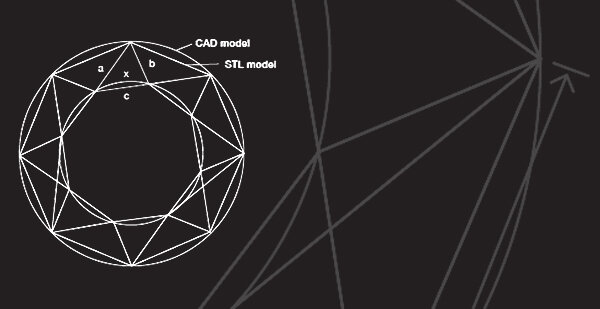
3D Computer-Aided Design (CAD) programs provide an invaluable benefit for engineers and designers to visualize their product in a 3-dimensional, virtual space. However, exporting to a Standard Tessellation Language (STL) file format happens to be a major pain point for some users. For example, low resolution files will have facets that may appear in a 3D printed model and those with very high resolutions will create an excessively large file that is difficult for 3D printing software to process. In order to get a good quality 3D print, you need to start with a good STL file.
How to Create the Ideal STL File / / Balance Resolution, File Size, Accuracy and Quality
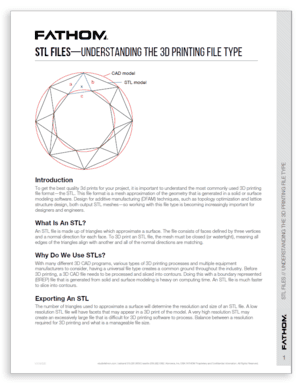
STL files are made up of triangles which approximate a surface. In order to 3D print an STL file, the mesh must be closed (watertight), meaning all edges of the triangle align with another and all of the normal directions are matching. When exporting from your CAD package, it’s important to consider the different options that your software provides such as distance deviation or angle resolution. In addition, every design program has a different method of converting files to STLs and some are more successful than others. Fathom has identified a list of potential STL errors and recommendations to proactively address these issues.
| CAD to STL : Export Considerations | Potential STL Errors |
|---|---|
| Distance Deviation | Inverted Normal |
| Angle Resolution | Bad Edges |
| Edge Length | Holes |
| Aspect Ratio | Noise Shells |
| ACSII Versus Binary | Multiple Shells |
- Inverted Normal / / A triangle’s normal is flipped the wrong way which creates an open mesh. Because of this, slicing software will be unable to create contours for printing. Simple STL editing software will enable you to flip the direction of the normal to correct the issues.
- Bad Edges / / The edge of a triangle is not adjacent to another triangle edge. Many times, bad edges that are very close to one another may be stitched together to close the mesh. This requires STL repair and we recommend re-modeling the areas where the boundary edges were detected in the native CAD software. Adding thickness or clearance where needed can sometimes help solve faulty edges.
- Holes / / Missing triangles from a region prevents a closed mesh. This is sometimes an easy fix within the STL, but that is not always the case. It may be necessary to edit or re-export of the original 3D CAD file.
- Multiple Shells / / Typically, it’s ideal for your STL to be made of one shell body for printing. Unwanted meshes and noise shells are typically created in error during an STL export. We recommend removing noise shells for cleaner contours. Solving any issues with your models in the native CAD software tends to have better results.
- Overlapping & Intersecting Triangles / / Overlapping and intersecting triangles may produce areas too small to print. Intersecting faces usually lead to failures since the software doesn’t recognize which areas are inside or outside of the model. We recommend combining the bodies into a single solid before exporting into an STL.
Working with Fathom provides immediate and comprehensive access to the most relevant equipment and experience in advanced manufacturing, engineering, and prototyping. Our engineers are able to address the most common mistakes and potential errors with STL file preparation, as even the most popular CAD packages can pose difficulties during STL file export. The expert team at Fathom has identified the most common pitfalls and guarantees that this STL Guideline document will save you time and ensure that your 3D printed parts accurately represent your idea.
Download the STL Guide— How to take your STL Files to Printed Parts